

S
Developer Docs
Discover how to get the most out of Divhunt for your unique needs, and explore the possibilities of building plugins to make Divhunt a better tool for everyone.
The Transform system allows users to easily add functionalities to a specific tag (element) on their website, like a 'scroll to top' button or complex gsap animation, without needing to write JavaScript code. It creates the JavaScript based on user-selected options from each transform. This code can be used in both the builder and on the website.
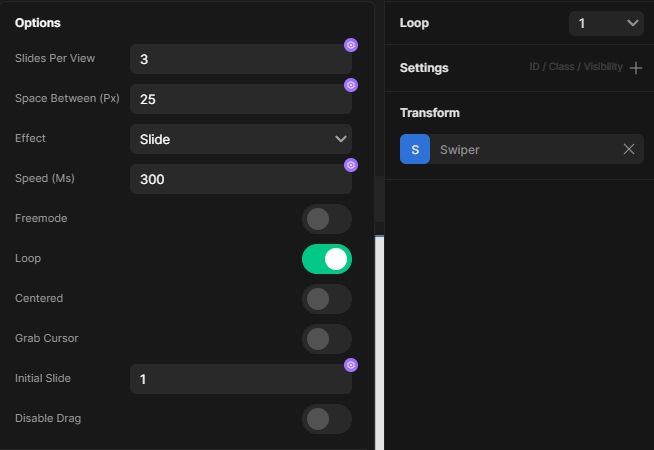
In the screenshot below, you see the user interface of our transform. On the left are the options for users to choose. Based on their choices, we create JavaScript code that manipulates a chosen tag (element) on the website.
Code Sceleton
Here we are working with addon transform. Learn here how Divhunt addons work. Transform addon requires id, name, options and code.
transform.OnReady(() => {
    transform.ItemAdd({
        id: 'transform_id',
        name: 'Transform Name',
        options: {},
        code: function(transform, tag, target, options, data){}
    });
});
Property Options
This is an object containing fields that users can use to customize how a specific transform functions. For instance, if we're creating a transform for a slider, these options could include the number of sliders per view, animation type, duration, etc. Each option varies in type based on your needs. The available types are: input, select, options, toggle, date, color, tag, child, and sibling.
Each option requires specific data based on its type. Every option must have a label, type, and value.
INPUT
In the example below, we're demonstrating how to create a slider. The user is provided with options to decide how many items should be displayed per page and the length of the animation. If the user doesn't input their own values, the slider will use the defaults we've set in the 'value' property.
Property: value (string, int)
It's important to know that the type of value you enter here will be the same type you get later in the code. It's not mandatory to have a default value. If you don't want one, just set the value to be an empty string ('').
Optional Property: units (array)
For the duration, there's an extra 'units' property set to ['ms', 's']. This lets users choose a specific unit for their value, like milliseconds or seconds. You can include various units like px, em, rem, and more.
items_per_page: {
    label: 'Items Per Page',
    type: 'INPUT',
    value: 5
},
duration: {
    label: 'Duration',
    type: 'INPUT',
    placeholder: 'Type value',
    value: '500ms',
    units: ['ms', 's']
}
SELECT
Here, we give the user a list of options, and they can only choose from what we provide.
animation: {
    label: 'Animation',
    type: 'SELECT',
    value: 'none',
    values: [
        {title: 'None',value: 'none'},
        {title: 'Fade',value: 'fadeIn'},
        {title: 'Fade Top',value: 'fadeInTop'},
        {title: 'Fade Down',value: 'fadeInDown'},
        {title: 'Fade Left',value: 'fadeInLeft'},
        {title: 'Fade Right',value: 'fadeInRight'},
    ]
}
OPTIONS
This works just like a regular select option, but with a different look. Instead of a dropdown, the user picks from options using radio buttons. This is best when there are only two or three choices.
position: {
    label: 'Position',
    type: 'OPTIONS',
    value: false
    options: [
        {title: 'Left', value: 'left'},
        {title: 'Right', value: 'right'},
    ],
}
TOGGLE
Provide the user with only two choices: true or false.
loop: {
    label: 'Loop',
    type: 'TOGGLE',
    value: false
}
FILE
Provide user with the option to upload a file, and get url of that file.
image_file: {
    label: 'Image',
    type: 'FILE',
}
DATE
The user will see an input field that opens a date and time picker. Return format is: eg. 2023-12-14 23:53
end_date: {
    label: 'Loop',
    type: 'DATE',
    value: '',
    placeholder: 'Pick a time'
}
COLOR
The user will see an input field that opens a color picker with various color types such as hex, rgba, hsla.
bg_color: {
    label: 'Loop',
    type: 'COLOR',
    value: '#FFF',
}
INFO
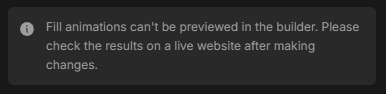
Add a description field to provide details about plugin customizations, useful when working with advanced options.
fill_info: {
  'type': 'INFO',
  'description': "Write some explanation here."
}
TAG // CHILD // SIBLING
These three types empower the user to select a specific element. They all function in the same way, but the range of selection is different.
TAG: Select any tag on a current page.
CHILD: Select a child element within the tag to which we applied the transform.
SIBLING: Choose an element that is right next to, or 'sibling' to, the tag where the transform is applied.
pagination: {
    label: 'Pagination',
    type: 'TAG', // can be TAG, CHILD or SIBLING
    value: '',
}
Condition
Any option can be displayed conditionally based on previous user choices. For example, if there are fields labeled 'Enable Pagination' and 'Pagination Type', the 'Pagination Type' should only be shown if 'Enable Pagination' is checked.
pagination: {
    label: 'Enable Pagination',
    type: 'TOGGLE',
    value: false
},
pagiantion_type: {
    label: 'Pagination Type',
    type: 'SELECT',
    value: 'numbers',
    values: [
        {title: 'Dots',value: 'dots'},
        {title: 'Numbers',value: 'numbers'},
    ],
    condition: (option, values) => {
        return values.pagination
    }
}
Code
In the callback function, you write JavaScript that activates when the target with this transform is on your current page. In the code, you have access to several variables: transform, tag, target, options, and data. Keep in mind that you are free to use jQuery as well.
Examples
Basic
In the example below, we've created a simple code for a transform. When the target is clicked, this code changes the background color and text of that element to values specified by the user. For this example, we assume that the options include 'text' (input) and 'bgColor' (color).
code: function(transform, tag, target, options, data){
    $(target).on("click", function(){
        $(this).text(options.text);
        $(this).css("background", options.bgColor);
    });
}
Using 3rd Party Libraries
In the example below, we are creating a simple tilt effect on the target to which the transform is applied, using the tilt.js library that we previously added. Learn more here about how mdLibraries work. We assume that all options used in the example below are already predefined in the options property.
code: function(transform, tag, target, options, data) {
    mdLibraries.Fn('load', ['tilt.js'], () => {
        $(target).tilt({
            maxTilt: options.maxTilt,
            speed: options.speed,
            transition: options.transition,
            disableAxis: options.disableAxis,
            reset: options.reset,
            glare: options.glare,
            maxGlare: options.maxGlare
        });
    });
}
Scroll trigger + Full working example
Divhunt is a single-page app, meaning pages don't refresh when you switch between them. This causes a problem with scroll triggers. If you use a scroll trigger on one page and then go to another, the original trigger is still running in the background. So, if you return to the first page, the trigger runs again. To avoid this, make sure to clear all scroll triggers from the transform each time you switch pages. Reason behind this is that the scroll trigger is attached to the window object, it remains active as long as the window is open.
In the example below, we're creating a transform for animations. The user can choose the type of animation, delay, offset, and duration. We then use these values to craft custom JavaScript for a specific target. Additionally, we manage the scroll event using the 'callbacks' variable, which is cleared every time the page changes, ensuring proper functionality.
transform.OnReady(function() {

    // Array to store scroll event callbacks
    let callbacks = [];

    // Bind a scroll event to the window
    $(window).on('scroll', () => {
        // Execute each callback in the callbacks array when the window is scrolled
        callbacks.forEach((callback) => {
            callback();
        });
    });

    // Clear callbacks when a new page is loaded
    $(document).on('dh/pages/unload', (event, page) => {
        callbacks = [];
    });

    transform.ItemAdd({
        id: 'simple-animations',
        name: 'Simple Animation',
        options: {
            a: {'label': 'Type', 'type': 'SELECT', 'value': 'fadeIn', 'values': [
                {value: 'fadeIn', title: 'Fade In'},
                {value: 'fadeInDown', title: 'Fade In Down'},
                {value: 'fadeInUp', title: 'Fade In Up'},
                {value: 'fadeInLeft', title: 'Fade In Left'},
                {value: 'fadeInRight', title: 'Fade In Right'},
            ]},
            b: {'label': 'Delay (ms)', 'type': 'INPUT', 'value': '200'},
            c: {'label': 'Offset (px)', 'type': 'INPUT', 'value': '100'},
            d: {'label': 'Duration (ms)', 'type': 'INPUT', 'value': '600'},
        },

        code: function(transform, tag, target, options, data){

            this.init = () => {

                // Check if the current view is live webiste
                if (data.mode === "website") {

                    $(target).css("opacity", "0");
                    this.startAnimation(target);

                    // Push a new callback to the callbacks array
                    callbacks.push(() => {
                        // Check if the target hasn't been animated yet
                        if(!$(target).hasClass('is-animated')) {
                            this.startAnimation(target);
                        }
                    });

                }
            }

            this.startAnimation = (target) => {
                let offset = options.c;
                if (!offset) { offset = 0 }
                const elPos = parseInt ( $(target).offset().top ) + parseInt ( offset );
                const topOfWindow = $(window).scrollTop();
                if (elPos < topOfWindow + $(window).height()) {
                    $(target).addClass('is-animated');
                    $(target).css("animation", `${options.a} ${options.d}ms ease ${options.b}ms forwards`);
                }
            }

            return this;
        },
    });
});