

S
Developer Docs
Discover how to get the most out of Divhunt for your unique needs, and explore the possibilities of building plugins to make Divhunt a better tool for everyone.
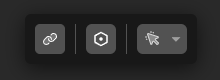
Quick actions provide users with the most relevant options based on the selected tag, conveniently located at the bottom of the screen, as shown in the screenshot below. For instance, if a user is editing a link button, they might see quick options to modify the link destination, connect a variable, switch the link to a div, and more.
Code
Down below you can see a starting point of creating new quick action. From the fields, we need unique id, condition and html.
quickActions.OnReady(() => {
    quickActions.ItemAdd({
        id: 'action_id',
        condition: (item, tag) =>  {
            /* Needs to return true in order to be shown */
        },
        html: function (item, editing, type) {
            return `
              <div class="action action_name">
                   /* HTML HERE */
              </div>
            `;
        }
    });
});
Condition
In the condition, we specify when we want this action to be visible. In the example below, the action is set to be visible only when the user is editing a video or an image.
condition: (item, tag) =>  {
    return ['img', 'video'].includes(edit.Fn('get.item').Get('name'));
}
In the example below, we see a more complex condition that checks multiple criteria. First, it verifies if the selected tag is a textual block, such as a paragraph. Additionally, it checks whether the current tag has access to variables. For the tag to access variables, it must either be on a single page of a specific source or contained within a source element, such as a CMS.
condition: (item, tag) => {
    let selectedItem = edit.Fn('get.item');
    let selectedItemName = selectedItem.Get('name');
    let pageId = $(".t" + selectedItem.Get('id')).closest("item[for='builder.area']").attr("data-id")?.replace("page-", "");
    let hasVariables = selectedItem.Get('data').repeat || pages.ItemGet(pageId).Get('source');

    if (hasVariables && ['p', 'span', 'li', 'h1', 'h2', 'h3', 'h4', 'h5', 'h6'].includes(selectedItemName)) {
        return true;
    }

    return false;
}
HTML
Within HTML, we can add our action, typically in the form of a button that triggers functions such as opening a popup.
Our HTML should be wrapped inside a div with the class "action" Additionally, you may want to add another class to this div for easier CSS customization if needed.
In the example below, you can see how to add a more complex HTML action. We highly recommend using Divhunt HTML elements for these actions, as they include native buttons, selects, inputs, icons, and more. Read HTML Documentation.
html: function (item, editing, type)  {
    const tag = edit.Fn('get.item');

    return `
    <div class="action iterable">
        <div>
            ${dh.icon('tree-view-duotone', 16, 'all')}
            <p> Iterable data is applied to this element. </p>
        </div>

        ${html.Render('button', {
            title: 'Edit iterable',
            onClick: () => {
               console.log("open iterable settings");
            },
            attributes: {
                style: 'padding: 0 10px;'
            }
        }, {class: 'silver'})}
    </div>`;
}
CSS Customizations
If you're using Divhunt HTML elements, custom CSS modifications are typically unnecessary. However, if you do need to make adjustments, hereâs an example of how to do so.
The class "b3f08bf7b" is a unique identifier for the wrapped div of our Quick actions. By starting your CSS code with this class, you can ensure that your changes wonât affect anything else within the builder.
.b3f08bf7b .actions .action.iterable p {
    /* write some code here to style paragraph inside of action iterable */
}
Table of content