

S
Developer Docs
Discover how to get the most out of Divhunt for your unique needs, and explore the possibilities of building plugins to make Divhunt a better tool for everyone.
What is a plugin
Divhunt plugins can extend anything. You can enhance existing features, replace them, or create new ones. Each Divhunt feature has its own documentation, making it easy to use native functions for plugin creation.
How to create a plugin
1. Install Creator
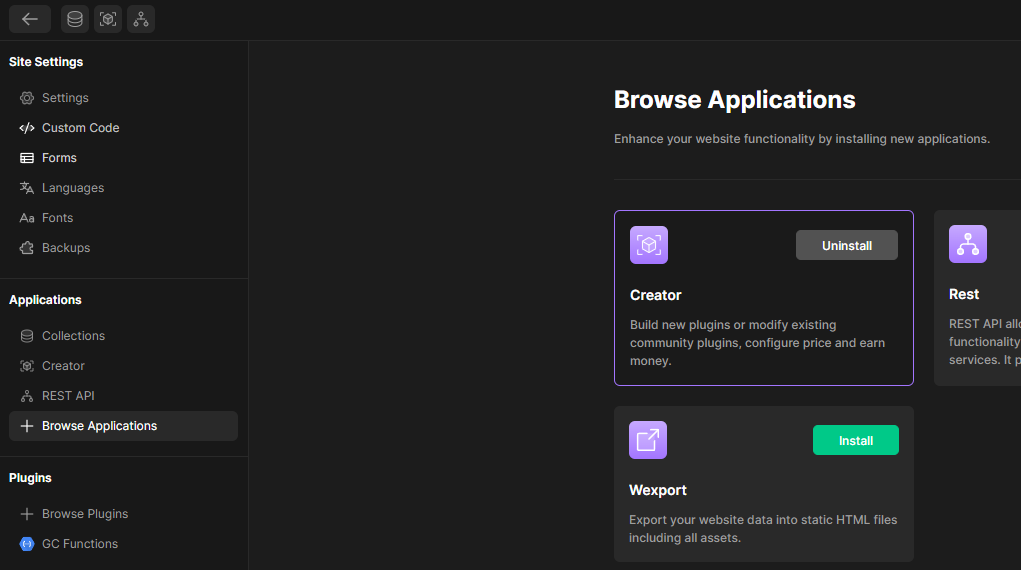
Go to admin panel of your website, select browse applicaitons from the sidebar and install Creator.
2. Open Creator
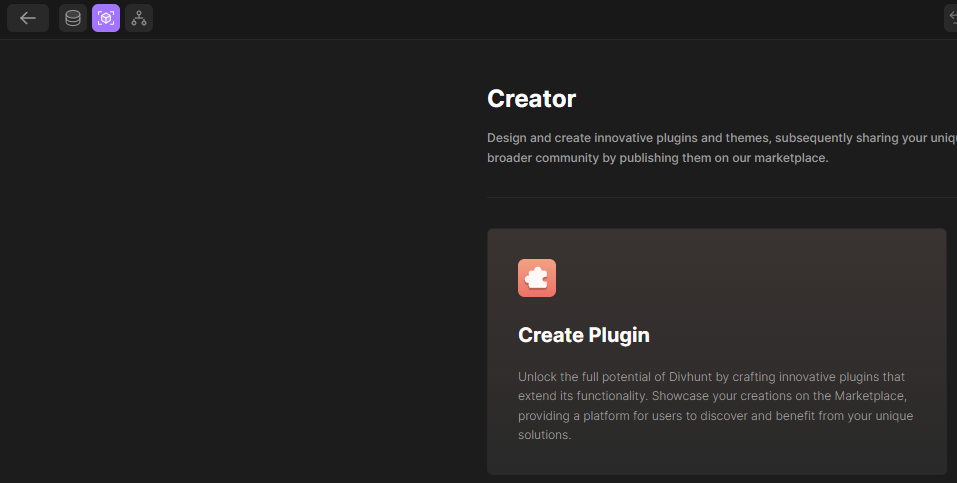
After successfully installing Creator, you can access it from the top left bar by clicking on the icon shown in the screenshot below. Upon that you will see an option "Create Plugin".
3. Fill the data
After creating a plugin, you'll be redirected to a new page where you can input all the details for your plugin, like content, description, icon, video tutorial, and more. This information will be displayed on your plugin's dedicated page, where users can visit to learn more about it.
4. Files
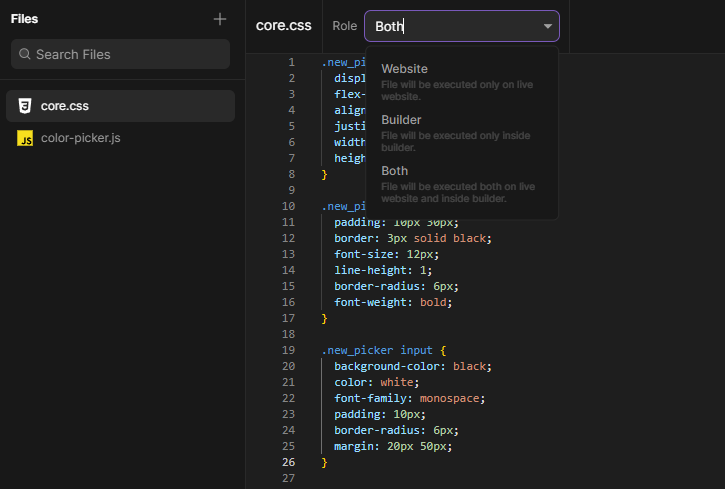
When you click on 'files', a popup will appear for coding your plugin. In the left sidebar, you can create JavaScript and CSS files. Each file has a 'role' dropdown to specify where the code should run. For example, a slider plugin needs to work in both the builder and on the website. However, something like a new color picker used only in the Divhunt builder, you can set the files to load exclusively in the builder.
5. Monteziation
In the Monetization tab, you have the option to monetize your work by selling your plugins to other members of our community. Alternatively, if you prefer to offer your work for free, you can simply proceed to Publishing.
6. Publish
In the publish settings, you can publish your plugin with just one click. Remember, our team will review your plugin before it's officially added to the Divhunt marketplace.