

S
Developer Docs
Discover how to get the most out of Divhunt for your unique needs, and explore the possibilities of building plugins to make Divhunt a better tool for everyone.
Before you start learning how to add items to designer, read and understand full documentation of Divhunt add on system.
Introduction
Designer is located in the right sidebar, allowing users to visually edit CSS properties for the selected tag. This documentation guides you on how to add new properties to the sidebar or modify existing ones.
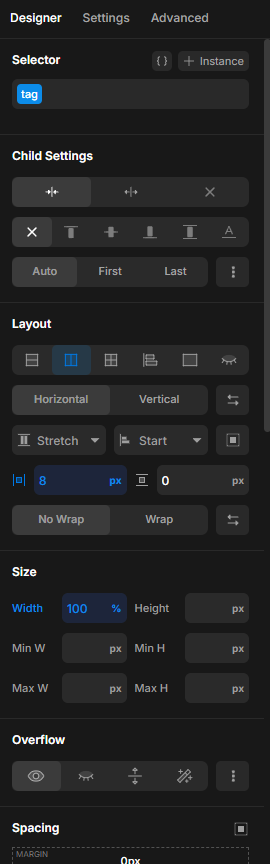
Add new main property
The designer interface is organized into dropdown menus, each representing a specific category. Each dropdown has a unique ID, a display name that appears as the dropdown title, and an optional order value to control its position within the interface.
designer.OnReady(() => {
    designer.ItemAdd({
        id: 'layout',
        name: 'Layout',
        order: 150,
        condition: (item, tag) => {
            /* here we can decide if this should be shown or not, for example we can show this only if user is currently editing an image */
        },
        html: function (item, editing, type)  {
            let html = '<div class="row"> html of content inside of our dropdown </div>';
            return html;
        }
    });
});
Add child property
In the example above, we defined the main property with id "layout."
To avoid cluttering this property with too many settings, we can break it down into multiple sub-items. Specifically, we can split it into "layout," "layout.flex," and "layout.grid." This approach helps maintain clean and organized code by logically grouping related properties under their respective categories.
When working with child property, order defines property order under the parent (dropdown). And we do not need a name, we provide it with the "parent".
designer.OnReady(() => {
    designer.ItemAdd({
        id: 'layout.grid',
        parent: 'layout',
        order: 2,
        condition: (item, tag) =>  {},
        html: function (item, editing, type)  {
            let html = '<div class="row"> html of our grid properties </div>';
            return html;
        }
    });
});
Grid structure of content
It's important to understand how content is structured in HTML. By default, we arrange all content within a 12-column grid system, as shown in the screenshot below. This grid helps keep everything organized and visually balanced. Since the grid has 12 columns in total, we can distribute elements across these columns as needed. For example, some elements might span the full width (12 columns), while others might take up 6, 4, or 3 columns, depending on the layout requirements. You can simply specify how many columns each element should occupy based on your needs.
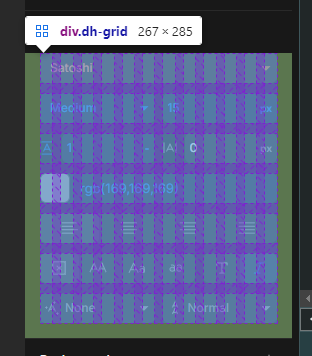
Each item you create should have a base class of "row." By default, this class will make the item span the full width of 12 columns. To adjust the size of the item, you can add a combo class that specifies the number of columns it should occupy. The combo class follows the format "s[column_number]" where "column_number" is a value between 1 and 12. For example, adding the class "s6" will make the row span 6 columns instead of the full 12.
html: function (item, editing, type)  {
  	let html = `
		<div class='row s6'>  this item will take first half (6 columns)  </div>
		<div class='row s6'> this item will take second half (6 columns)  </div>
	`;
   	return html;
}
Global functions
When working with designer, we have some predefined function that will help you to achieve specific things.
Get CSS
To get CSS value specific property, we need to provide:
designer.Fn( 'css.get', ' css_property, css_default = '', is_inheritable = true );

/* example: text align */
designer.Fn('css.get', 'text-align', 'left');

/* example: width */
designer.Fn('css.get', 'width', 'px', false);
Code above explained:
Return value
Our get function will always return an object which contains a class and a value.
{
    class: 'class_name',
    value: value
};
Set CSS
When user perfroms some action, such as change of input field, select and similar, we want to get that value and save that CSS value to appropriate property. To do this we can call a set.css function and provide it with:
designer.Fn('css.set', css_property, value, no_history = false)

/* example: set width to '50%' */
designer.Fn('css.set', 'width', '50%');
Color validation
When working with colors, it's important to consistently save them in the same way, we dont want to save empty spaces in our database. This function ensures that colors are formatted correctly.
designer.Fn('css.color.validate', color);

/* example, using blank spaces in rgba */
designer.Fn('css.color.validate', 'rgba(255, 255, 255, 1)');  /* will return: rgba(255,255,255,1)
Convert variable to regular color
Users are very often using variables for their colors, and sometimes we need to get the color code of that variable.
designer.Fn('css.color.get-value-from-variable', variable);

/* example */
designer.Fn('css.color.get-value-from-variable', 'var(--orange)');  /* will return color code of saved variable such as: rgba(212,122,220,1)
CSS Units
When working with inputs that provide user an option to add unit such as px, rem, em and similar, instead of always typing array from scratch such as ['px', 'em', 'rem'], we have a function that returns instantly most comonly used units, and then you can add new ones on top of it, or remove certain unit and get array back.
Default array: ['px', '%', 'rem', 'em', 'vw', 'vh']
designer.Fn('list.units', add = [], exclude = [], addToStart = false)

/* if we want to get array ['fit-content', 'px', '%', 'rem', 'em'] */
designer.Fn('list.units', ['fit-content'], ['vw', 'vh'], true)
Fields (Renders)
When working with the Designer, we aren't using the standard HTML renderings found in the HTML documentation. Instead, we use slightly modified versions with some predefined options specific to the Designer. These include features like color changes based on CSS inheritance, right-click to reset, and various CSS units (px, rem, em, etc.).
Input
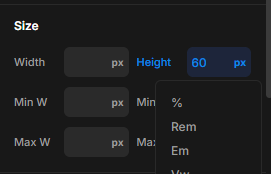
Using the code below, we can add an input with predefined functionality by specifying what we need this input to do.
${designer.Render('html.input', data = {}, block = {} )}

/* example */
let fsize = designer.Fn('css.get', 'font-size', '16px');
${designer.Render('html.input', {
    key: 'font-size',
    label: 'Font size',
    value: fsize.value,
    setCSS:true,
    units: designer.Fn('list.units'),
    onChange: (target, value) => {
    	console.log("user changed value of input to: " + value);
    },
    onInput: (target, value) => {
    	console.log("user is typing, current value is: " + value);
    },
}, {class:fsize.class})}
Select
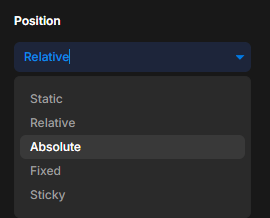
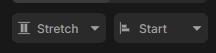
Using the code below, we can add select with predefined functionality by specifying what we need this input to do.
${designer.Render('html.select', data = {}, block = {} )}

/* example */
let textAlign = designer.Fn('css.get', 'text-align', 'left');
${designer.Render('html.select', {
    key: 'text-align',
    label: 'Text align',
    value: textAlign.value,
    setCSS:true,
    prefix: '<img src="my_icon.svg">',
    units: designer.Fn('list.units'),
    options: [
        {title: 'Left', value: 'left'},
        {title: 'Center', value: 'center'},
        {title: 'Right', value: 'right'},
        {title: 'Justify', value: 'justify'}
    ],
    onChange: (target, value) => {
    	console.log("user changed value of select to: " + value);
    },
    onHover: (target, value) => {
    	console.log("user is hovering over option with value of: " +value);
    },
    onModal: (target, modal, list) => {
    	console.log("user opened a dropdown");
    },
}, {class:textAlign.class})}
Options
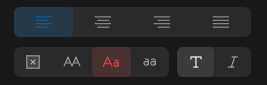
Using the code below, we can add options with predefined functionality by specifying what we need this to do.
${designer.Render('html.options', data = {}, block = {} )}

/* example */
let textAlign = designer.Fn('css.get', 'text-align', 'left');
${designer.Render('html.options', {
    key: 'text-align',
    value: textAlign .value,
    setCSS:true,
    options: [
        {icon: 'text-align-left|builder', tooltip: 'Left', value: 'left'},
        {icon: 'text-align-center|builder', tooltip: 'Center', value: 'center'},
        {icon: 'text-align-right|builder', tooltip: 'Right', value: 'right'},
        {icon: 'text-align-justify|builder', tooltip: 'Justify', value: 'justify'},
    ],
    onClick: (target, value) => {
        console.log("user selected: " + value);
    },
}, {class:textAlign .class})}
Color

Using the code below, we can add color field with predefined functionality by specifying what we need this to do.
${designer.Render('html.options', data = {}, block = {} )}

/* example */
let bgColor = designer.Fn('css.get', 'background-color', 'black');
${designer.Render('html.color', {
	key: 'background-color',
	label: 'Background',
	setCSS: true,
    value: bgColor.value,
    onChange: (target, value) => {
        console.log("user saved color: " + value);
    },
    onChange: (target, value) => {
        console.log("user changed color to: " + value);
    },

}, {class: bgColor.class})}
Code example
Now that we have learned how to add new items to the designer tab and to work with css, we are ready to create a new CSS property. Using this documentation, along with the HTML documentation, let's explore what we can create.
Let's create some options for list editing.
In first file, we will create options for one main property, in this case that can be "list-style-type" which is going to be a select field.
designer.OnReady(() => {
    designer.ItemAdd({
        id: 'list',
        name: 'List otptions',
        order: 140,
        condition: (item, tag) => {
             ['ul', 'ol', 'li'].includes( edit.Fn('get.item').Get('name'));
        },
        html: function (item, editing, type)  {

        	let lst = designer.Fn('css.get', 'list-style-type', 'disc', false);

        	return `
	        	<div class="row">
					${designer.Render('html.select', {
					    key: 'list-style-type',
					    label: 'Type',
					    value: lst.value,
					    options: [
					        {title: 'Disc', value: 'disc'},
					        {title: 'Circle', value: 'circle'},
					        {title: 'Square', value: 'square'},
					        {title: 'Decimal', value: 'decimal'},
					        {title: 'Lower Alpha', value: 'lower-alpha'},
					        {title: 'Upper Alpha', value: 'upper-alpha'},
					        {title: 'Lower Roman', value: 'lower-roman'},
					        {title: 'Upper Roman', value: 'upper-roman'},
					        {title: 'None', value: 'none'}
					    ],
					    setCSS:true,
					}, {class:lst.class})}
				</div>
			`;

        }
    });
});
Now in second file, we will create additional properties, and we will set their parent to be 'list' that we create above.
designer.OnReady(() => {
    designer.ItemAdd({
        id: 'list.position',
        parent: 'list',
        order: 2,
        condition: (item, tag) =>  {},
        html: function (item, editing, type)  {

        	let lp = designer.Fn('css.get', 'list-style-position', 'outside', true);

        	return `
        		<div class="row">
					${designer.Render('html.options', {
		                key: 'list-style-position',
		                value: lp.value,
		                setCSS:true,
		                options: [
		                    {title: 'Outside', value: 'outside'},
		                    {title: 'Inside', value: 'inside'},
		                ],
		            }, {class:lp.class})}
		         </div>
	         `;

        }
    });
});
Styling
In case you need to add additional CSS to items you have just added, its best practice to have wrapper class so you don't break anything else. Wrapper class: .i26cb6169[data-id='ITEM_ID']
.i26cb6169[data-id='list'] button {
     /* edit button inside of list item that we created above */
}